Racing
AI opponents: racing, difficulty and drifting
New in 1.1
On this page
AI opponents drive the same Kart as your players, with the same inputs: steering, throttle, brake, jump and drift. A Kart AI Controller decides those inputs on the server, so AI Karts follow the same physics and work in multiplayer. New in 1.1
Add AI Karts
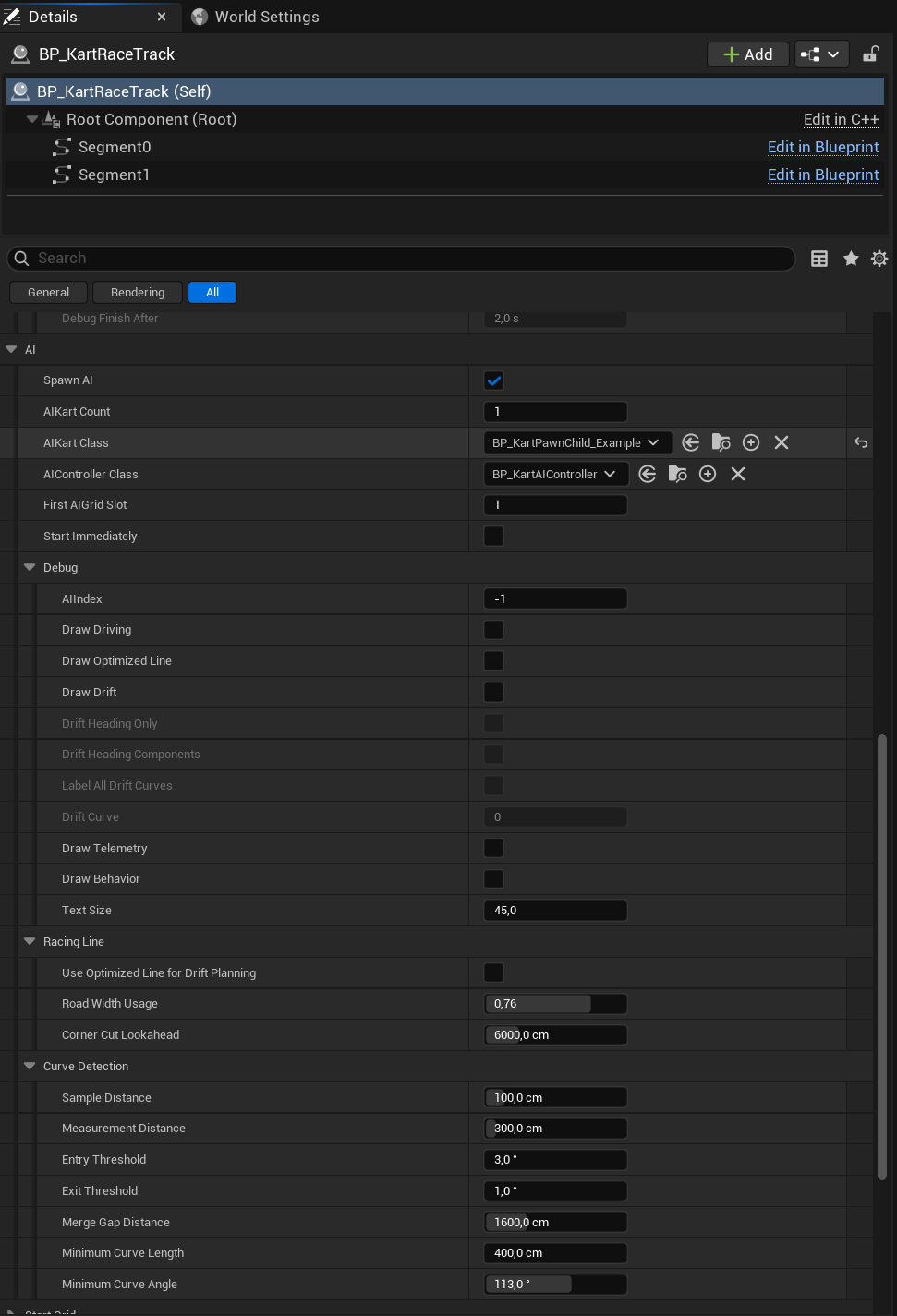
AI Karts need a built race track. Select the track and open Kart Race Track > AI in the Details panel:
| Setting | What it does |
|---|---|
| Spawn AI | Spawns AI Karts on the start grid. |
| AIKart Count | How many. Limited by the free grid slots. |
| AIKart Class | The Kart they drive, for example BP_KartPawn. |
| AIController Class | The driver. BP_KartAIController holds the tuned values; make a Blueprint child of it for your own tuning. |
With the Race Game Mode, the GameMode spawns them after the players and starts them at GO. With your own GameMode, the track spawns them when play starts; call Start Driving on each of its Spawned AIControllers when your race starts. To test, tick Start Immediately and they drive at once.
Difficulty
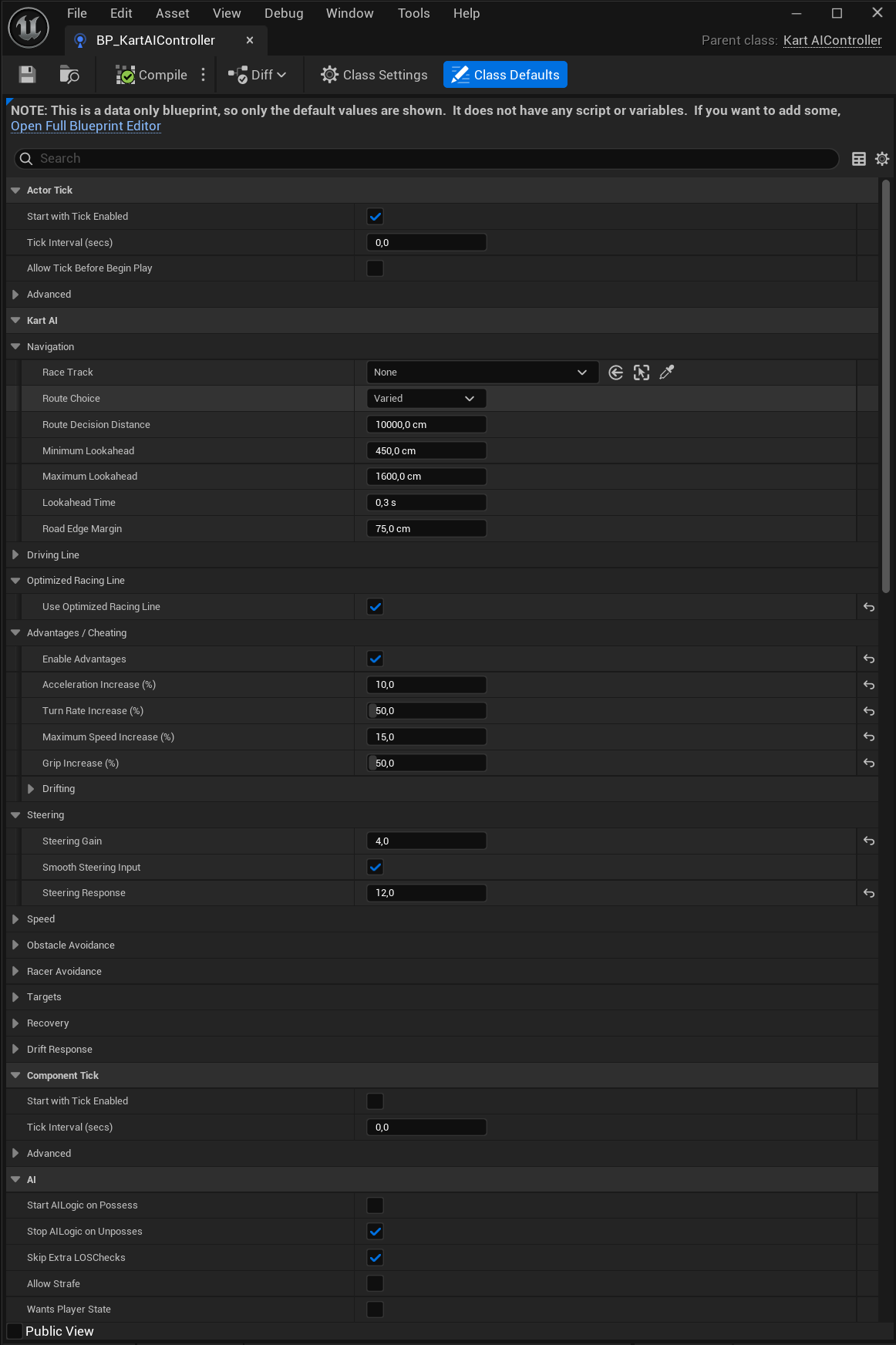
The main lever is Advantages / Cheating on the AI controller (Class Defaults > Kart AI > Advantages / Cheating). Tick Enable Advantages, then add a percentage to the Kart’s own values:
- Acceleration Increase (%)
- Maximum Speed Increase (%)
- Turn Rate Increase (%)
- Grip Increase (%): more sideways grip, so the AI holds tighter or faster curves without sliding wide.
BP_KartAIController has them on. For an easier AI, lower them or untick Enable Advantages. Pace (Kart AI > Speed) also slows it down: the share of the Kart’s top speed the AI aims for. For close races at any skill level, see Rubberbanding on the track (Kart Race Track > Race).
Optimized racing line
Instead of the track’s spline, the AI drives an optimized line that cuts corners inside the road. Build Track calculates that line for every route and saves it with the level. The switch is Use Optimized Racing Line (Kart AI > Optimized Racing Line on the controller), on in BP_KartAIController.
Drifting
Turn it on or off
Enable Drifting (Kart AI > Drift Response on the controller) is on by default. With it off, the AI drives the track without drifting. On a new track, get the AI driving well that way first, then turn drifting on and follow Set up AI drifting for your track.
Mark where it must never drift
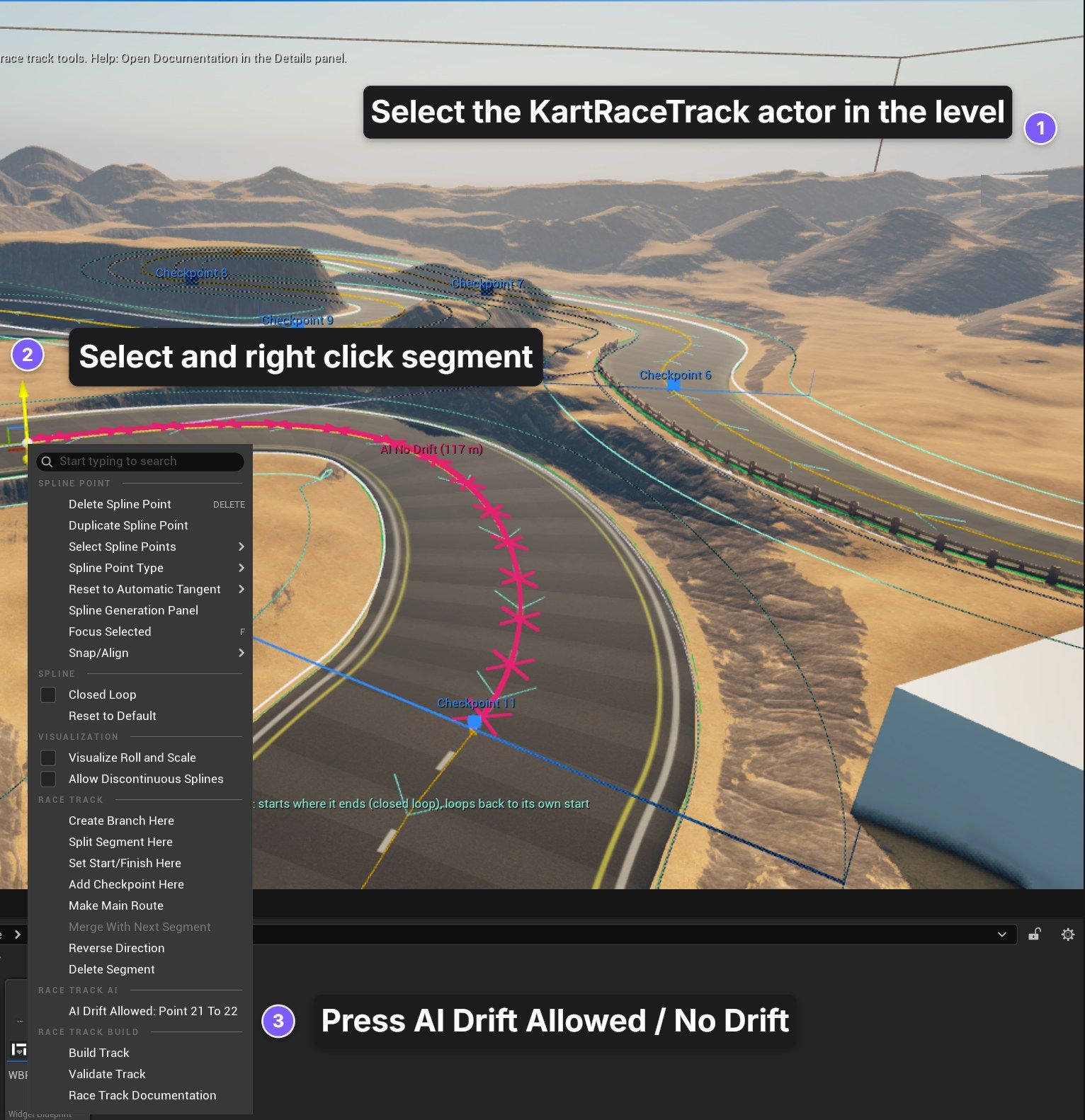
Some places should never get a drift, for example a narrow bridge or a jump. Select the track, click a road to select it, then right-click the line of a section > AI No Drift: This Section. To mark a longer stretch, select several spline points first. The AI never starts a drift there, skips curves that reach into the section and ends a drift that runs into it. The section shows as a thick line with crosses. AI Drift Allowed removes the mark.
Tune it
Drift tuning is finicky. Change one setting at a time and watch its marker move with Draw Drift (see Debug it). The AI plans every drift in two layers, so tune them in this order:
- The track finds the curves. Curve Detection on the track (Kart Race Track > AI > Curve Detection) decides where each curve starts and ends. Every AI driver uses the same curves.
- The AI responds to them. Drift Response on the AI controller (Kart AI > Drift Response) places the other markers: when to hop, which line to drift and when to let go.
The AI can only drift a curve the track found, so get the curves right first.
1. Curve Detection (on the track)
| Setting | Marker | What it changes |
|---|---|---|
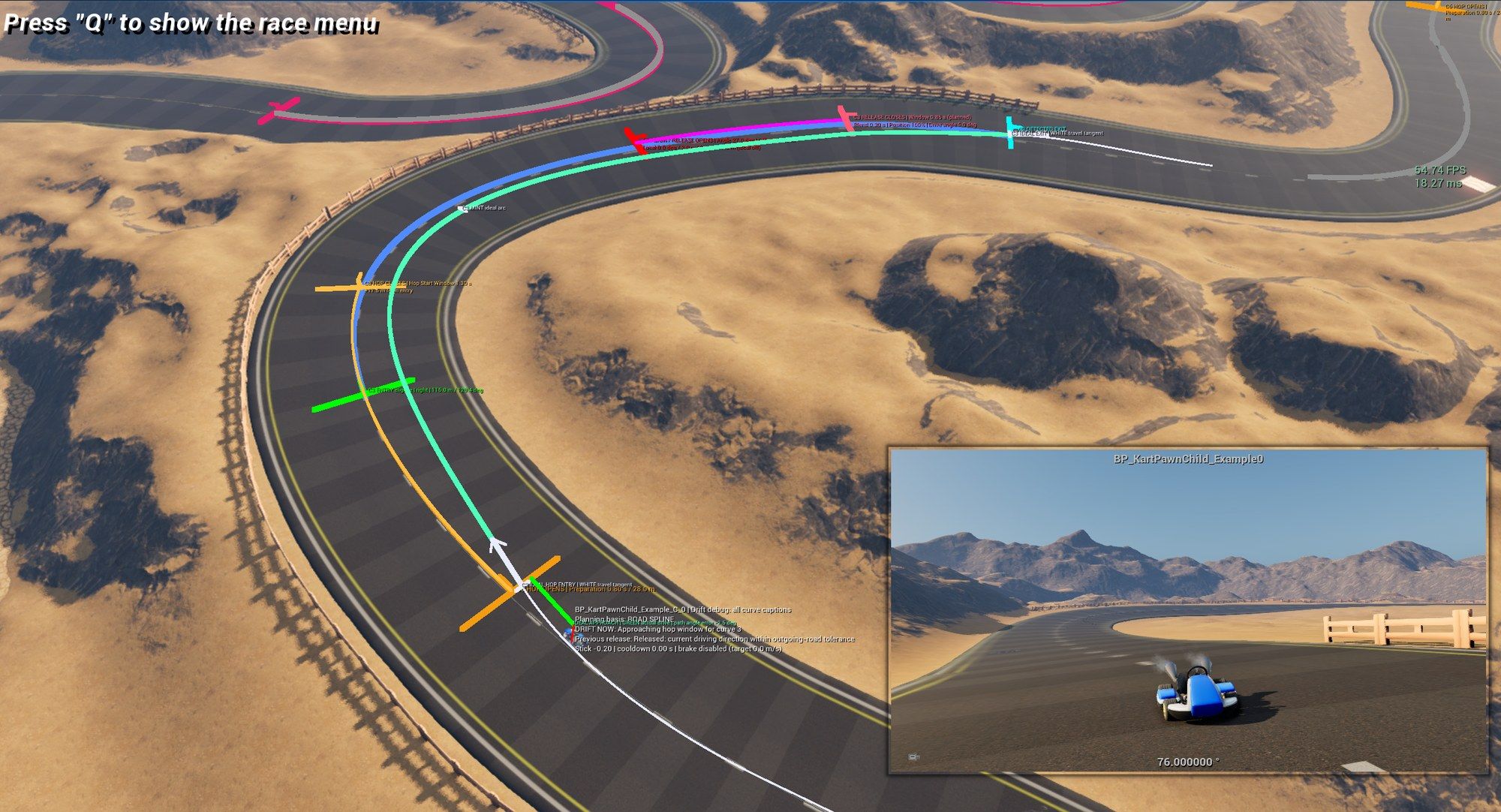
| Entry Threshold | Green ENTRY | Lower finds gentler curves and starts them earlier. |
| Exit Threshold | Cyan DETECTED EXIT | Lower carries a curve further through its gentle end. |
| Merge Gap Distance | Blue curve | Bends in the same direction closer than this join into one curve. |
| Minimum Curve Angle | Gray curve | Curves that turn less in total turn gray and are never drifted. Your main tool for picking which curves get a drift. |
| Minimum Curve Length | Gray curve | Shorter curves turn gray. |
Each ENTRY label shows the curve’s length and total angle, so you can compare them with the two minimums.
2. Drift Response (on the AI controller, Kart AI > Drift Response)
| Setting | Marker | What it changes |
|---|---|---|
| Preparation Time | Orange HOP OPENS | How long before ENTRY the hop starts. The orange line runs from here to ENTRY. |
| Hop Start Window | Light orange HOP CLOSES | The last point where the hop may start. |
| Use Ideal Drift Path, Ideal Middle Position (Ideal Path) | Mint arc | The line the AI drifts along. Middle Position sets how far it cuts to the inside. |
| Remaining Curve Angle Release Threshold, Release Offset (Release) | Red RELEASE OPENS | Where the AI starts lining up with the road ahead. It lets go as soon as it points the right way. With both at 0, this is the DETECTED EXIT; a negative offset moves it earlier. |
| Release Window Duration (Release Window) | Magenta line to RELEASE CLOSES | The latest point where the AI lets go. |
| Release Heading Tolerance (Release Window) | Drive angle in the RELEASE CLOSES label | How straight the Kart must point to let go before RELEASE CLOSES. |
| Drift Probability (%) (Probability) | Gray curve | How often the AI drifts a curve it could drift. Rolled per curve and lap; while playing, a curve it skips turns gray. |
| Enable Pre Drift Braking (Pre Curve Braking) | Pink curve | Brakes before tight drift curves. Off in BP_KartAIController, which uses Ideal Drift Speed instead. |
| Ideal Drift Speed | None | With Use Ideal Drift Speed on (as in BP_KartAIController): the speed the AI brakes to before the hop and holds through the drift. Lower it if AI Karts run wide. |
| Minimum Speed | None | No drift starts below this speed. |
If you change your Kart’s top speed or drift settings, plan a new tuning pass for the AI too.
Debug it
The debug settings are on the track: Kart Race Track > AI > Debug. They work in Play and Simulate, and you can change them while playing.
- Draw Optimized Line: the racing line. In the editor, without playing, every route’s saved line in its own color: yellow is the main route, blue the second route (through a branch), then pink, green and orange. Where routes share a road, their lines run on top of each other or close together. The legend at the top right names each route and its length. While playing: yellow is the optimized line, gray the road center, and blue-gray the edges of the corridor the line may use.
- Draw Drift: the drift plan. In the editor, without playing, every curve of every route: blue curve, green entry, orange hop window, red release, gray skipped, crimson AI No Drift. A legend sits at the top right. While playing, untick Drift Heading Only to see the full plan instead of two heading arrows. The editor preview uses the Drift Response of the track’s AIController Class. Tune it lists which setting moves which marker.
- Draw Driving: the AI’s path, steering target and status labels.
- Draw Telemetry: a screen readout of the decisions, inputs and speed of one driver.
- AIIndex: -1 shows every AI driver; 0, 1, 2… only that one (0 is the first AI Kart the track spawned).
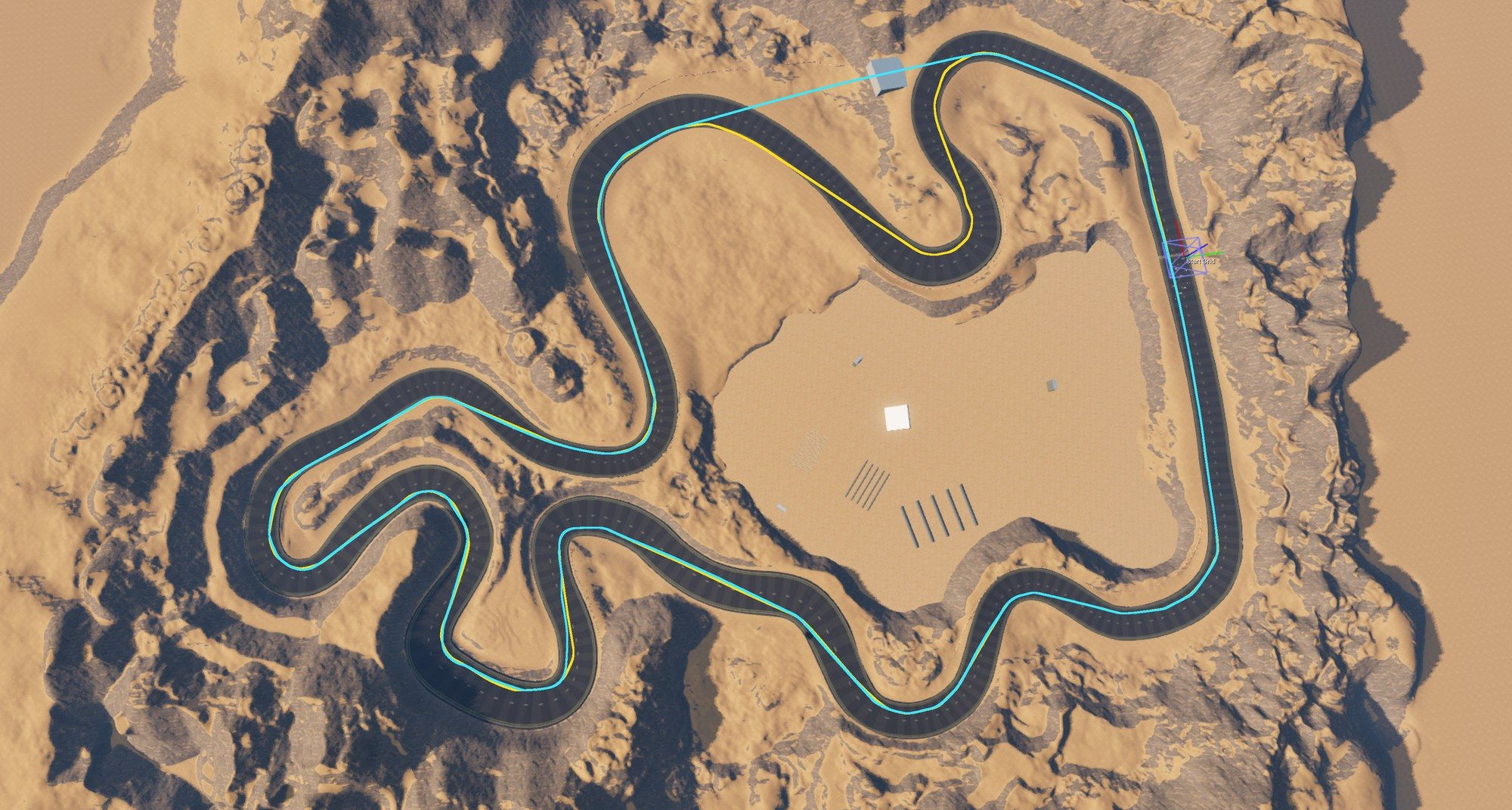
Set up AI drifting for your track, step by step
Do this for every track of your own: the AI only drifts well once the curves and its drift response fit your roads. Watch one AI Kart drive the track while you change its settings.
Set up
- Example project only:
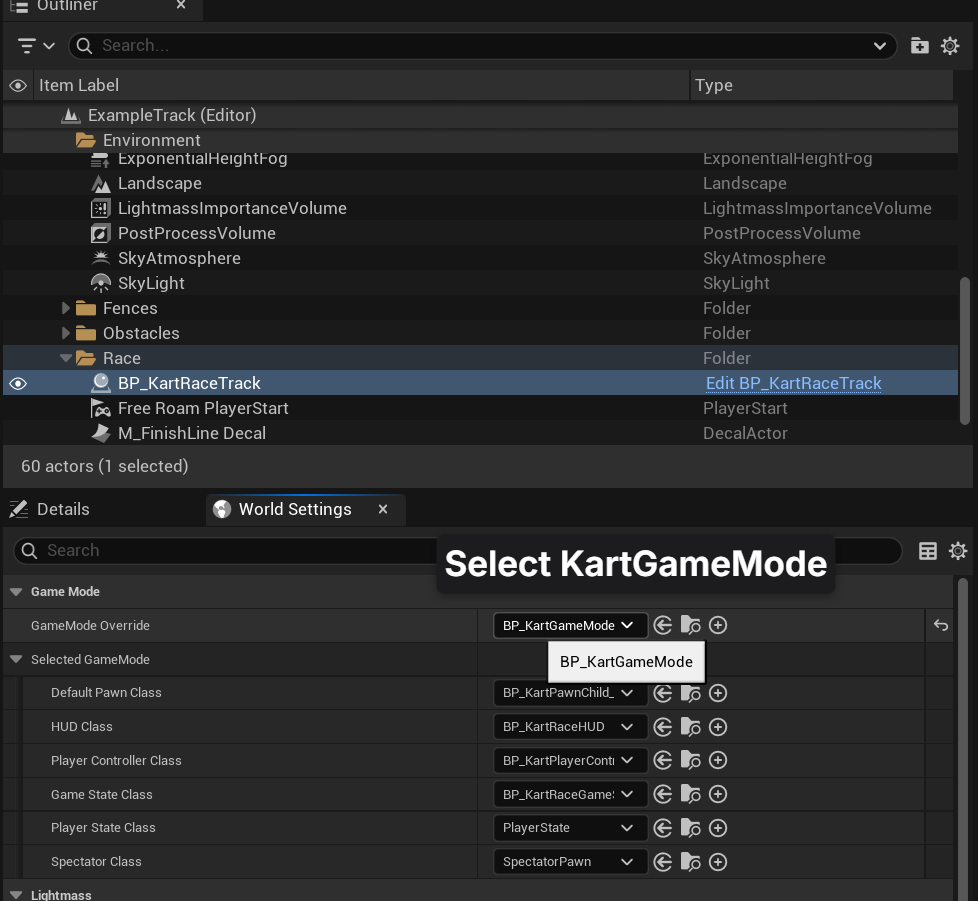
ExampleTrackstarts in free roam. In World Settings, set GameMode Override toBP_KartGameMode. In your own level, keep your GameMode. - Select the track. In Kart Race Track > AI, tick Spawn AI, set AIKart Count to 1 and tick Start Immediately, so the AI drives as soon as you press Play.
- In Kart Race Track > AI > Debug, tick only Draw Drift. Untick Drift Heading Only, then tick Label All Drift Curves.
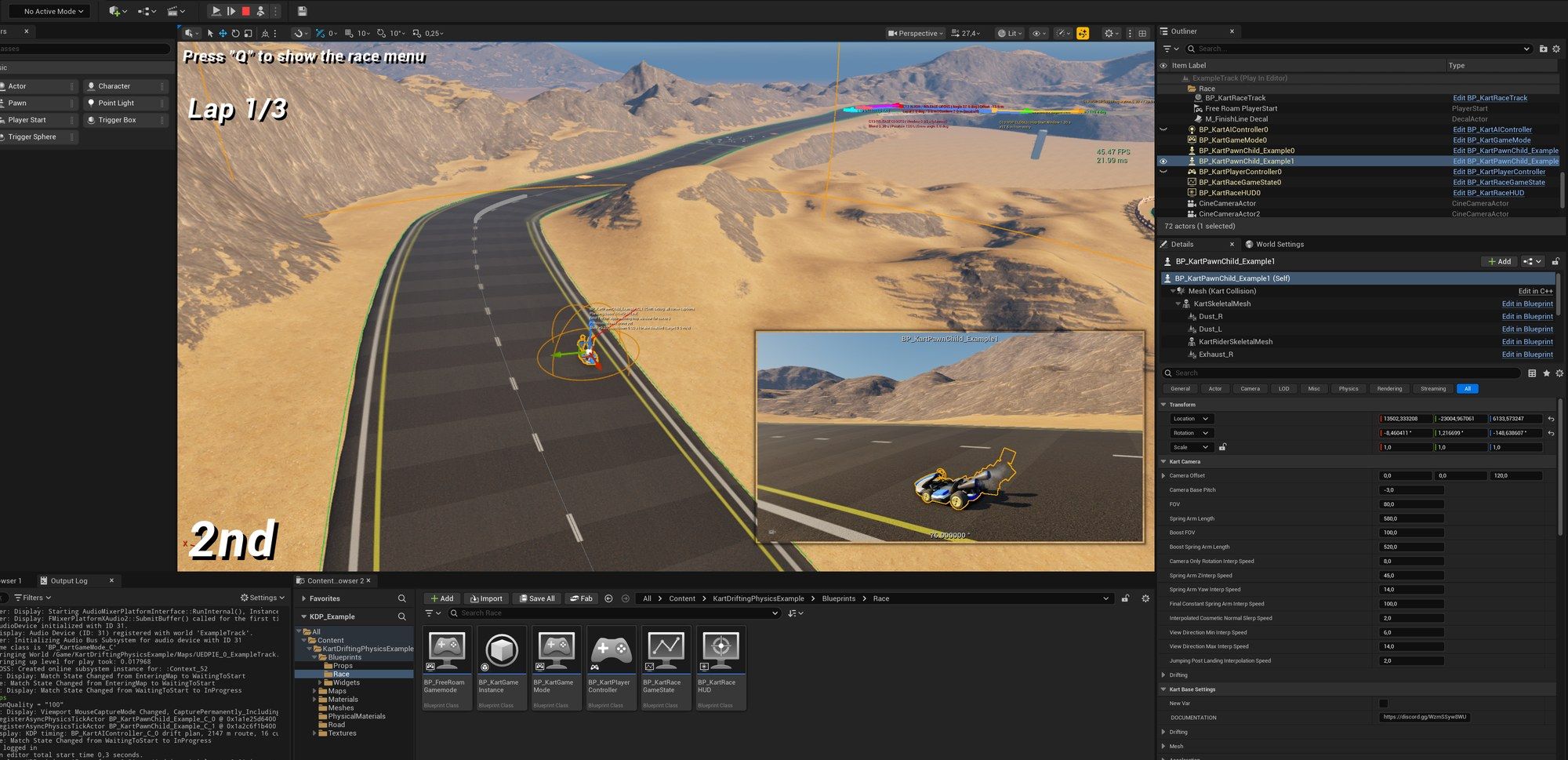
Watch the AI Kart
- Open the three dots next to Play, pick Selected Viewport and press Play.
- Press Shift+F1 to free the mouse, then click Pause and Eject in the toolbar. You can now fly around with the editor camera.
- Click the AI Kart. Its camera preview shows in the corner of the viewport: pin it, so you keep watching the AI while you click elsewhere.
Simulate (next to Play) works too: no player Kart, and you can fly around right away.
Change settings while it drives
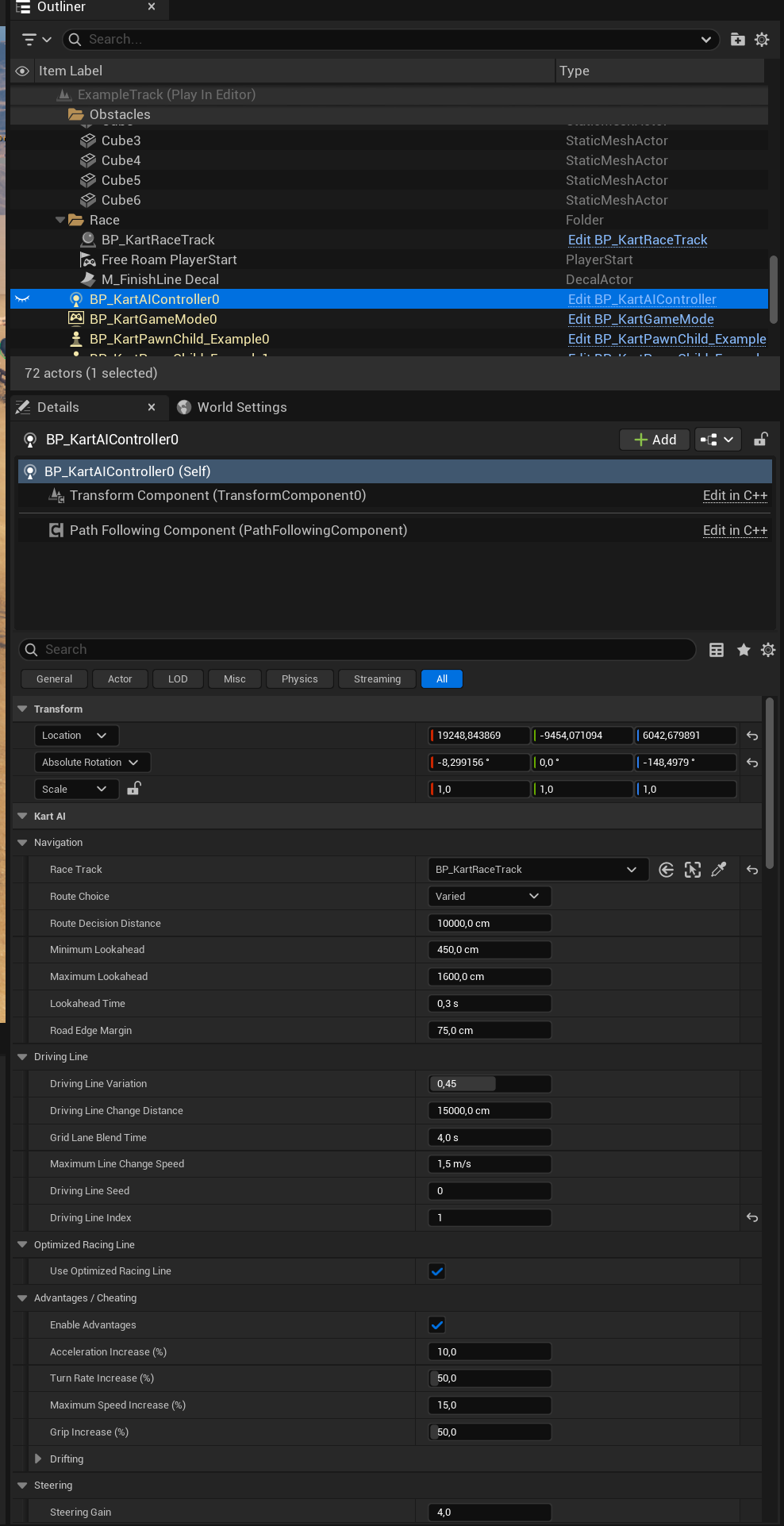
- In the Outliner, select the yellow
BP_KartAIController0. Yellow actors were spawned by the game: this one is the live driver of the AI Kart. - Click Resume and change its settings in the Details panel. The AI uses the new values right away.
Tune in this order:
- Curve Detection on the track (Kart Race Track > AI > Curve Detection) decides which bends count as curves. Only those can be drifted, so set it up for your track first.
- Drift Response on the AI controller (Kart AI > Drift Response) decides how the AI drifts those curves: when it hops, how fast it goes and when it lets go. The values in
BP_KartAIControllerare a good start. - AI No Drift fixes single trouble spots: where the AI struggles but every other curve is fine, mark that part of the road (see Mark where it must never drift). The example track has two.
While you tune:
- Use one AI Kart.
- Read the white text above the AI Kart: DRIFT NOW says what it is doing, Previous release why its last drift ended.
- Keep it on the same roads every lap: set Route Choice (Kart AI > Navigation) to Main Route Only on the controller, or use a track with a single route.
Kart AI Target
Add a Kart AI Target component to any actor the AI should drive through, such as a boost pad or an item box. AI drivers leave their line for it, up to its Max Detour, when no other Kart is in the way. BP_BoostPad already has one.
Next steps
- Race track: the road, checkpoints and Build Track.
- Race Game Mode: countdown, grid spawning and results.
- Boosts and items: the boost pad and oil puddle the AI drives into.
Not using the plugin yet? Get it on Fab.