Racing
Race track: route, laps, checkpoints and start grid
New in 1.1
On this page
The Kart Race Track follows every Kart around your route (laps, checkpoints, position, wrong way, respawns) and gives AI Karts their road and racing line. You draw the route with Unreal splines, then press Build Track. New in 1.1
Set up a track
- Enable Show Plugin Content in the Content Browser settings, open
KartDriftingPhysics Content > Blueprintsand dragBP_KartRaceTrackinto your level. Use one track per level. - Make the route:
- If your road is a landscape spline (recommended), move the track actor onto the road where the race should start. Set Landscape Spline Source (Kart Race Track > Copy From Landscape) to the Landscape or Landscape Spline Actor with the road (empty: every landscape spline), then press Copy From Landscape Splines. It copies every road with its width and puts the start grid behind the start line.
- Without a landscape spline, press Add Segment. On an empty track it creates a closed loop with a start line. Drag its spline points along your road.
- Check the arrows on the road. If the track runs the wrong way, press Reverse Track Direction.
- Press Build Track.
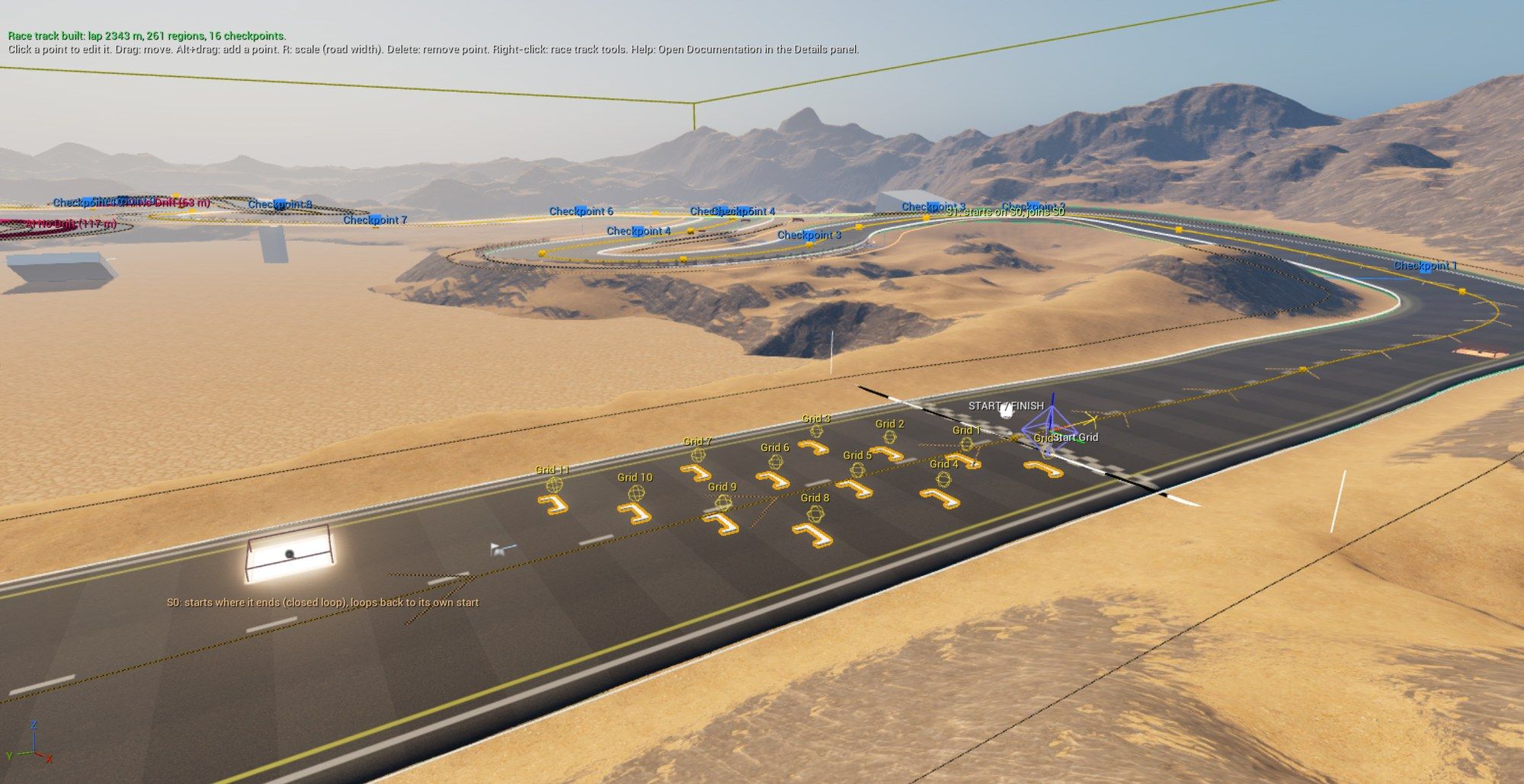
Editing the road
Click any line of the track to select it and show its spline points. Drag a point to move it, Alt+drag the last point to add one, press Delete to remove one. The road is Road Width wide (segment setting, 1200 cm) times the point’s Y scale: press R and drag the green Y handle to widen it. Outside it, a Kart is off the road. Ctrl + Z undoes every change.
Laps and AI Karts
Both are set on the track:
| Setting | Where | What it does |
|---|---|---|
| Laps | Kart Race Track > Race | Laps to finish (default 3). 0: the race never ends. |
| Spawn AI | Kart Race Track > AI | Spawns AI Karts on the start grid. |
| AIKart Count | Kart Race Track > AI | How many AI Karts. Limited by the free grid slots. |
| Grid Marker Count | Kart Race Track > Start Grid | Number of grid slots (default 8). Raise it for more Karts. |
With the Race Game Mode, players take the first grid slots and the AI Karts the slots after them.
Start line, checkpoints and start grid
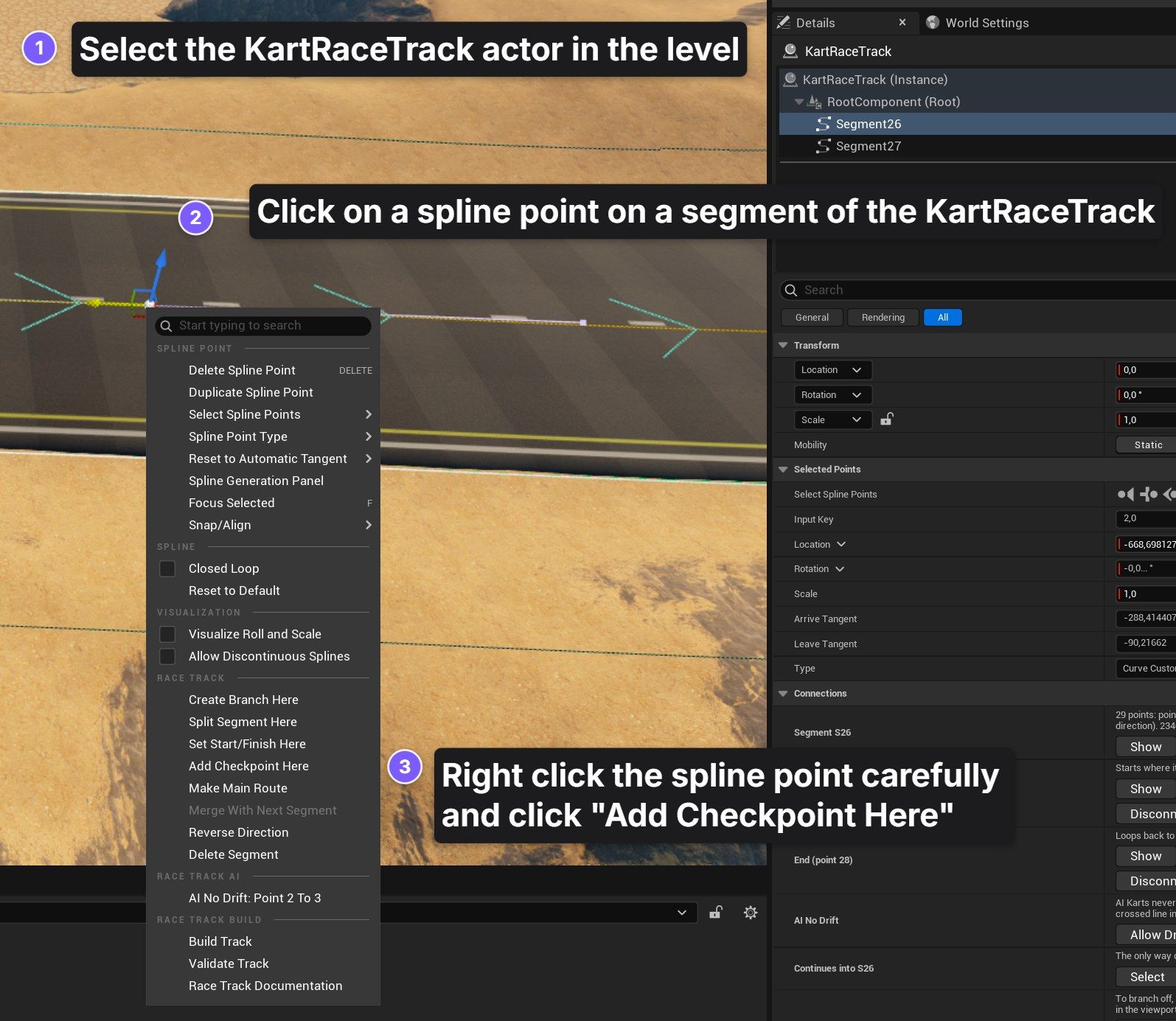
Select the track and right-click a spline point or the spline line. In the Race Track section:
- Set Start/Finish Here moves the start line. Or drag its handle (the ball on the checkered line).
- Add Checkpoint Here adds a checkpoint with the next free number. Drag its handle to move it; click the handle and press Delete to delete it.
A lap counts only when the Kart crossed every checkpoint in order, so nobody gains by cutting across the infield. Number them in driving order (1 is the first after the start line) under Checkpoints in the Details panel.
The start grid sits behind the start line. After moving the start line, press Place Grid Behind Start Line, or drag and rotate the Start Grid widget. Slot 0 is at the widget, the others to its left and behind.
Build Track
Press Build Track (Details panel or right-click menu) after every change, then save the level. It checks the track, generates the tracking data for laps and respawns, and saves the AI racing lines. Validate Track only checks.
The top left of the viewport tells you when the track or the AI settings changed since the last build. Problems show as numbered markers (Problem 1, 2, …) explained at the top left and in Window > Message Log > Kart Race Track, naming the segment, for example S3.
Branches and shortcuts
A shortcut is its own segment. The road it leaves stays whole.
- Right-click the road where the shortcut leaves > Create Branch Here. A new segment starts there, with its last point selected.
- Drag that last point to where the shortcut rejoins the road.
- Right-click it > Connect End To Nearest. The end blends into the road. A shortcut drawn backwards is flipped, with a message.
- Add points to shape it: right-click its line > Add Spline Point Here.
- Press Build Track.
The lap is measured along the main route; a shortcut counts as the part it replaces, so Karts on either road are ranked correctly. Make Main Route (right-click menu) picks the main road.
If a checkpoint sits on the part a shortcut skips, Build Track reports it. Right-click a point of the shortcut > Add Missing Checkpoints to add the same numbers there.
Next steps
- AI opponents: Karts that race on your track.
- Race Game Mode: countdown, grid spawning and results, without writing a game mode.
Not using the plugin yet? Get it on Fab.